
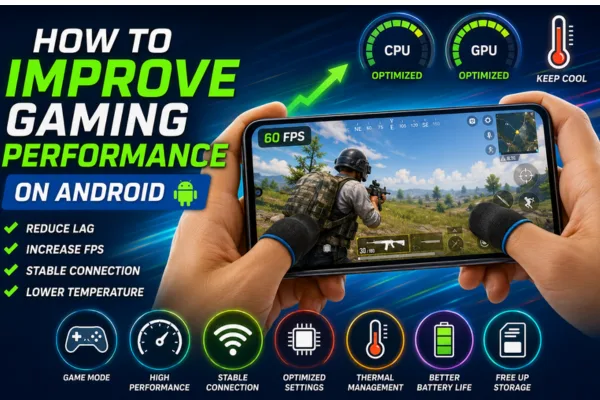
Struggling with stutters, frame drops, or overheating while playing mobile games? How to Improve Gaming Performance on Android is a step-by-step guide that helps you fix lag, raise FPS, and keep long sessions stable. This article walks through practical, non-technical changes, settings to toggle, and safe habits that deliver real improvements without rooting or risky software.
Why Performance Drops Happen
- Resource limits: Mobile CPUs, GPUs, and RAM are shared between the OS and apps, so demanding games can hit those limits quickly.
- Thermal throttling: When the device gets hot, the system reduces clock speeds to protect hardware.
- Software interference: Background apps, aggressive battery savers, and outdated drivers can reduce performance.
- Network issues: Online games can feel laggy because of high latency or packet loss, even when FPS looks fine.
Quick Checklist
- Restart your device to clear RAM and background tasks.
- Update Android OS and your games to the latest versions.
- Keep at least 15–25% free storage and battery above 30%.
- Use 5GHz Wi‑Fi or a strong mobile data connection for online play.
Device Settings That Help
Enable Game Mode or Game Booster
Turn on your phone’s built-in game mode to prioritize CPU and GPU resources, block notifications, and reduce background tasks. On supported Android devices, Game Mode is designed to optimize gameplay based on user-selected performance or battery preferences. See Google’s official Game Mode documentation for details: Android Game Mode documentation .
Use High-Performance Mode
If your phone has a High-Performance profile, enable it before launching demanding games. This can help prevent CPU and GPU downclocking during heavy gameplay.
Adjust Refresh Rate
Set the display refresh rate to the highest stable option only if the game and device can handle it smoothly. If your phone heats up fast, adaptive refresh can offer a better balance between battery life and performance.
Disable Battery Saver
Battery saver features can cap performance. Turning them off during gaming helps keep full processing power available.
Developer Options Tweaks
Android’s Developer options let you profile and debug app performance, and they also include system behavior settings you can adjust carefully. Google documents these controls in its official Android Studio developer options guide: Developer options guide .
- Reduce animation scales to 0.5x or off for snappier device response.
- Limit background processes only if you regularly keep too many apps open.
- Avoid Force 4x MSAA unless you want better visuals at a heat and battery cost.
Storage and Memory
- Free storage: Keep at least 15–25% free so games can load assets without stuttering.
- Clear cache: Clear the cache for large games from time to time to remove temporary clutter.
- Remove unused apps: Uninstall apps you no longer use and disable auto-start for nonessential apps.
Network Optimization
- Prefer 5GHz Wi‑Fi or stable 5G when available.
- Pause cloud backups, app updates, and large downloads before gaming.
- Sit closer to the router if you use Wi‑Fi to reduce packet loss and ping spikes.
Thermal Management
Heat is one of the biggest reasons Android gaming slows down. When a device gets too warm, it lowers performance to protect the processor and battery. Avoid playing while charging, remove thick cases during long sessions, and take short breaks every 30–45 minutes.
In-Game Settings That Matter
- Lower shadows, reflections, and post-processing for higher FPS.
- Set a stable frame-rate cap instead of chasing the highest number.
- Test V-Sync on and off to find the best balance between input lag and smoothness.
- Reduce particle effects and background rendering if the game offers those options.
Also Read: Best Phones for Students
Useful Tools and Safe Practices
Use official or manufacturer-approved game boosters when available. Samsung, for example, provides gaming options through its Galaxy gaming features and Game Booster settings. You can review their guidance here: Samsung gaming options support .
Avoid unofficial FPS unlockers or overclocking apps from unknown sources. Those tools can create instability, reduce security, or void warranty coverage.
Battery and Charging
- Keep battery between about 30% and 90% for better thermal behavior.
- If you must charge, use a lower-watt charger and keep the phone ventilated.
- Lower brightness during gaming to reduce heat and power draw.
Maintenance Habits
- Update Android and your games whenever stable updates are available.
- Restart your phone weekly to refresh system services.
- Monitor storage and remove junk files regularly.
- Factory reset only as a last resort if slowdowns continue.
Sample Optimization Routine
- Restart the phone.
- Enable Game Mode and Performance Mode.
- Connect to 5GHz Wi‑Fi and pause background downloads.
- Lower graphics to Medium and set a stable FPS cap.
- Play with the case off if heat becomes a problem.
Comparison Table
| Tweak | Ease | Performance Gain | Downside |
|---|---|---|---|
| Enable Game Mode | Easy | High | Minimal |
| High-Performance Mode | Easy | Medium to High | More battery use and heat |
| Lower in-game graphics | Easy | High | Reduced visual quality |
| Force 4x MSAA | Intermediate | Low visual benefit | Big battery and heat cost |
| Remove case | Easy | Medium | Less protection |
Also Read: Best Phones for BGMI
Trending FAQs
Will Game Mode void my warranty?
No. Built-in Game Mode is a manufacturer feature and is safe to use. Avoid third-party apps that ask for root access or deep system permissions.
Does turning off animations help gaming?
Yes. Lower animation scales can make the phone feel faster and slightly reduce system overhead.
Can I game while charging?
You can, but charging adds heat. Try to avoid long sessions while charging if your device already gets warm.
Are FPS unlock tools safe?
Not always. Many unofficial tools can cause instability, security issues, or warranty problems.
How often should I update my phone for gaming?
Install stable system and game updates as they arrive. Many updates include performance and thermal improvements.
Conclusion
How to Improve Gaming Performance on Android comes down to a few consistent habits: enable game mode, optimize in-game settings, keep the phone cool, and manage storage and background apps. These simple steps can reduce lag, improve FPS, and make long gaming sessions much smoother.
Try the checklist above on your phone today, then share which tweak made the biggest difference. For more Android optimization guides and gaming tips, explore related articles and keep testing what works best for your device.