
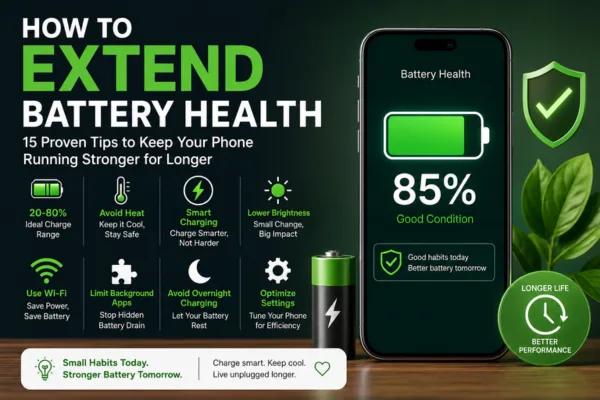
Does your phone battery seem to drain faster every month? You’re not alone. Millions of users struggle with declining battery performance, but the good news is that how to extend battery health is simpler than you think. With the right habits and settings, you can significantly slow down battery degradation and keep your device running smoothly for years.
This guide delivers actionable, science-backed strategies to preserve your battery’s capacity, reduce charging stress, and maximize daily runtime. Whether you use an iPhone or Android, these tips will help you get the most out of every charge.
Understanding Battery Health: Why It Matters
Modern smartphones use lithium-ion (Li-ion) batteries, which naturally degrade over time. Each charge cycle slightly reduces the battery’s maximum capacity. After 500 full charge cycles, most batteries retain only about 80% of their original capacity.
Battery health isn’t just about daily runtime—it affects performance, charging speed, and even resale value. A degraded battery can cause unexpected shutdowns, slower processing, and reduced efficiency.
The key takeaway? How to extend battery health comes down to two main factors: avoiding extreme temperatures and adopting smart charging practices.
15 Proven Ways to Extend Battery Health
1. Keep Your Charge Between 20% and 80%
One of the most effective ways to preserve battery longevity is to avoid full charge cycles (0–100%). Experts recommend keeping your battery level between 20% and 80% during daily use.
Why it works: Lithium-ion batteries experience the most stress at the extremes—when fully charged or fully depleted.
Practical tip: Plug in your phone when it drops to around 30% and unplug it once it reaches 80–90%.
2. Avoid Overnight Charging
Leaving your phone plugged in all night keeps the battery at 100% for hours, which accelerates degradation.
Better approach: Charge your phone during the day or use a timer/smart plug to stop charging once it hits 80%.
iPhone users: Enable Optimized Battery Charging in Settings → Battery → Battery Health.
Android users: Look for Adaptive Charging or similar features in battery settings.
3. Use Slower Chargers for Overnight or Desk Charging
Fast charging generates more heat, which stresses the battery. While convenient, it’s best reserved for when you’re in a hurry.
Recommendation: Use a 10–18W charger for overnight or desk charging.
Save fast charging for situations when you need a quick top-up before leaving home.
4. Manage Heat Exposure
Heat is the number one enemy of battery health. High temperatures can permanently damage battery cells in minutes.
Avoid these heat traps:
Charging on soft surfaces like beds or sofas (blocks ventilation)
Leaving your phone in a hot car (interior temps can reach 60–70°C)
Using thick cases while fast-charging (traps heat)
Running intensive apps (gaming, streaming) while charging.
Cool charging tips:
Remove your case during fast charging
Charge on hard, flat surfaces
Keep your phone out of direct sunlight
5. Enable Adaptive Battery or Battery Saver Modes
Both iOS and Android offer built-in features to optimize battery usage.
Android: Turn on Adaptive Battery to limit background activity for apps you don’t use often.
iPhone: Enable Low Power Mode when battery drops below 20%, or use Optimized Battery Charging.
These features learn your usage patterns and reduce power drain from unnecessary processes.
6. Reduce Screen Brightness and Timeout
The display is the largest battery consumer on modern phones. Lowering brightness and shortening screen timeout can significantly extend daily runtime.
Quick settings to adjust:
Enable Auto-Brightness to adapt to ambient light
Set screen timeout to 30 seconds or 1 minute
Reduce manual brightness when indoors
7. Turn on Dark Mode (for OLED Screens)
If your phone has an OLED display (iPhone XS and newer, most flagship Androids), Dark Mode can save battery by turning off pixels that display black.
How to enable:
iPhone: Settings → Display & Brightness → Dark
Android: Settings → Display → Dark Theme
8. Limit Background App Refresh
Apps running in the background drain battery even when you’re not using them. Restricting background activity preserves both daily runtime and long-term health.
Steps to restrict:
iPhone: Settings → General → Background App Refresh → Turn Off (or select specific apps)
Android: Settings → Apps → Select App → Battery → Restricted
9. Disable Unnecessary Features
Turn off features you’re not actively using to reduce power drain.
Disable when not needed: Wi-Fi, Bluetooth, GPS, Mobile Data, NFC
Turn off: Keyboard sounds, haptic feedback, and vibration.
These small adjustments add up over time.
10. Use Wi-Fi Instead of Cellular Data
Cellular radios—especially 5G—consume significantly more power than Wi-Fi. Whenever possible, connect to Wi-Fi to reduce battery strain.
Tip: At home or work, switch to Wi-Fi and enable Airplane Mode if cellular signal is weak (poor signal forces the phone to work harder).
11. Delete Unused Accounts and Apps
Every account synced to your phone (email, social media, cloud services) runs background processes that drain battery.
Clean up your device:
Remove unused email accounts
Delete apps you haven’t used in months
Disable push notifications for non-essential apps
12. Avoid Wireless Charging When Possible
Wireless charging is less efficient and generates more heat than wired charging, which can accelerate battery degradation.
Best practice: Use wired charging for daily use, and reserve wireless charging for convenience when heat isn’t a concern.
13. Store Your Device Properly (If Not in Use)
If you’re storing a device for an extended period (e.g., an old phone or tablet), follow these guidelines to preserve battery health:
Charge the battery to around 50% before storage
Store in a cool, moisture-free environment (below 32°C / 90°F)
Recharge to 50% every six months if storing longer than six months
14. Keep Your Software Updated
Operating system updates often include battery optimizations and bug fixes that improve efficiency.
Check for updates regularly:
iPhone: Settings → General → Software Update
Android: Settings → System → System Update
15. Monitor Battery Health Regularly
Both iOS and Android provide tools to check your battery’s maximum capacity and health status.
iPhone: Settings → Battery → Battery Health & Charging
Android: Settings → Battery → Battery Health (or use third-party apps like AccuBattery)
Tracking your battery health helps you identify degradation early and adjust habits accordingly.
Also Read: Best Android Settings to Change Immediately
Trending FAQs: How to Extend Battery Health
Q1: Is it bad to charge my phone to 100%?
Yes, regularly charging to 100% stresses the battery and accelerates degradation. For long-term health, aim to keep your charge between 20% and 80%.
Q2: Should I let my battery drain to 0% before charging?
No. Letting your battery drop to 0% frequently can damage it. Charge when it reaches 20–30% to minimize stress.
Q3: Does fast charging damage battery health?
Fast charging generates more heat, which can degrade the battery faster over time. Use it sparingly and opt for slower chargers when possible.
Q4: Is wireless charging bad for battery health?
Wireless charging is less efficient and produces more heat than wired charging, which can contribute to faster degradation. Use it occasionally, not as your primary charging method.
Q5: What temperature is best for battery health?
Lithium-ion batteries perform best between 15°C and 25°C (59°F–77°F). Avoid exposing your phone to temperatures above 35°C (95°F) or below 0°C (32°F).
Q6: Can I improve battery health after it’s degraded?
Unfortunately, battery degradation is irreversible. However, adopting better charging habits can slow further decline and maximize remaining capacity.
Q7: Does using my phone while charging harm the battery?
Using your phone for intensive tasks (gaming, video streaming) while charging generates excess heat, which stresses the battery. Light use (browsing, messaging) is generally fine.
Common Battery Myths Debunked
Myth 1: You should fully drain and recharge your battery to “calibrate” it.
Fact: This applies to old nickel-based batteries, not modern Li-ion. Frequent full discharges actually harm Li-ion batteries.
Myth 2: Closing apps saves battery.
Fact: Force-closing apps can use more battery because the system has to reload them from scratch. Let the OS manage background apps.