
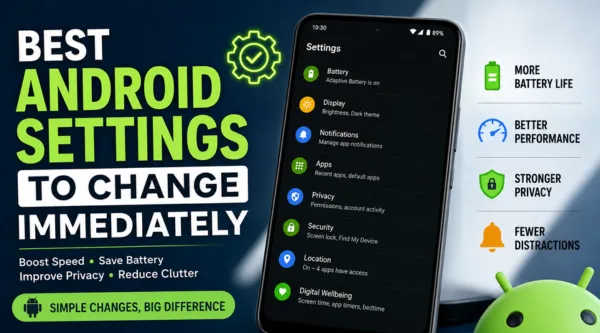
If your phone feels slow, drains fast, or keeps showing distracting alerts, the Best Android Settings to Change Immediately can make a real difference in minutes. A few smart adjustments can improve speed, extend battery life, and reduce clutter without installing extra apps.
Why these settings matter
Most Android phones ship with settings that favor convenience over performance. That means background activity, heavy animations, and app permissions may keep running even when you do not need them. Changing the right options can help your phone feel lighter, safer, and easier to use.
These tweaks are especially useful if you use your phone for work, content creation, social media, or mobile browsing. They are also a good first step before you think about a factory reset or a new device.
1. Turn on Adaptive Battery
Adaptive Battery helps Android learn which apps you use most and limits power use for apps you rarely open. This is one of the easiest Best Android Settings to Change Immediately because it works quietly in the background and can improve daily battery life.
How to enable it
- Open Settings.
- Tap Battery.
- Find Adaptive Battery or Battery optimization.
- Turn it on if it is available.
2. Reduce screen brightness and turn on auto brightness
Your display uses more power than almost any other feature. Lowering brightness manually or using adaptive brightness can save battery fast and make your phone easier on the eyes. This is a simple part of the Best Android Settings to Change Immediately because it affects both comfort and power use.
Best practice
- Turn on Adaptive Brightness.
- Lower brightness indoors.
- Use dark mode in apps and system settings if your display supports it well.
3. Disable unnecessary notifications
Too many notifications waste attention and can also wake your screen repeatedly. When you reduce alerts from low-priority apps, your phone feels calmer and less distracting. It also helps battery life because fewer apps are constantly pushing updates.
What to do
- Go to Settings > Notifications.
- Review apps that send frequent alerts.
- Turn off non-essential notifications.
- Keep only the apps that truly matter.
4. Limit background app activity
Some apps keep running even when you are not using them. They may refresh content, track location, or sync data in the background. If your phone is slow or hot, this setting deserves attention.
Steps to check
- Open Settings > Apps.
- Select an app you do not need running all day.
- Tap Battery or Background usage.
- Restrict background activity when possible.
5. Use dark mode
Dark mode does more than change the look of your phone. It can reduce eye strain and, on OLED screens, help lower battery use. Many users also find it easier to read at night.
Where to find it
- Open Settings > Display.
- Tap Dark theme or Dark mode.
- Set it to turn on automatically at night if available.
6. Clear storage and remove unused apps
A full phone often feels slower. When storage runs low, Android has less room for temporary files, updates, and app data. Cleaning up your storage is one of the fastest ways to improve performance.
Quick cleanup checklist
- Delete apps you do not use.
- Remove duplicate photos and videos.
- Empty downloads you no longer need.
- Clear app cache for heavy apps like browsers or social media.
7. Turn off or reduce animations
Animations make Android look smooth, but they can also make older phones feel slower. Reducing them can create a snappier experience, especially on budget and mid-range devices. This tweak is often included in lists of the Best Android Settings to Change Immediately for performance.
How to do it
- Enable Developer Options if needed.
- Open Developer options.
- Set Window animation scale, Transition animation scale, and Animator duration scale to a lower value or off.
8. Check app permissions
Many apps ask for access they do not really need. Camera, location, microphone, contacts, and storage permissions should be reviewed often. Tightening permissions protects privacy and may reduce background activity.
Best approach
- Open Settings > Privacy > Permission manager.
- Review sensitive permissions one by one.
- Remove access from apps that do not need it.
9. Turn on Find My Device and security lock options
Security settings are just as important as speed settings. If your phone is lost or stolen, you want a way to find it, lock it, or erase it remotely. A strong screen lock also keeps your data safer.
Enable these options
- Find My Device
- PIN, password, or biometric lock
- Auto-lock after a short time
- Two-factor authentication for your Google account
10. Update Android and apps regularly
Software updates often include bug fixes, security patches, and performance improvements. Outdated apps can crash more often, drain battery, or cause compatibility problems. Keeping everything updated is one of the simplest Best Android Settings to Change Immediately habits you can build.
What to update
- Android system updates.
- Google Play system updates.
- Apps from the Play Store.
11. Review auto-sync settings
Auto-sync is useful, but not every account needs to sync all the time. Excess syncing can drain battery and use data in the background. This matters a lot if you use multiple Google accounts, email accounts, or cloud services.
Smart sync tips
- Keep sync on for email and calendar if you need real-time updates.
- Turn off sync for accounts you rarely use.
- Check cloud apps that refresh too often.
12. Set up Digital Wellbeing limits
If you spend too much time on your phone, Digital Wellbeing tools can help you regain control. App timers, focus mode, and bedtime mode reduce distractions and create healthier habits. They are also useful for people who want less screen clutter.
Use these tools
- App timers for social apps.
- Focus Mode during work.
- Bedtime Mode at night.
Quick settings checklist
- Enable Adaptive Battery.
- Lower brightness and use auto brightness.
- Reduce unnecessary notifications.
- Restrict background app activity.
- Turn on dark mode.
- Clear storage and uninstall unused apps.
- Reduce animations.
- Review app permissions.
- Turn on device security and Find My Device.
- Update Android and apps.
- Adjust auto-sync.
- Use Digital Wellbeing tools.
Also Read: 25 Hidden Android 16 Features You Should Try Today
FAQs
What is the first Android setting I should change?
Start with battery, brightness, and notifications. These are the easiest changes and usually deliver the fastest results.
Do these settings work on all Android phones?
Most do, but menu names can vary by brand. Samsung, Pixel, OnePlus, Xiaomi, Vivo, and Oppo may place the same option in different locations.
Will reducing animations damage my phone?
No. It only changes how the interface looks and feels. It can make the phone appear faster, especially on older devices.
Is it safe to clear cache?
Yes, for most apps. Clearing cache removes temporary files, not your personal data. It is a useful cleanup step when an app becomes slow.
How often should I check these settings?
Review them every few months, or anytime your phone starts feeling slow, hot, or cluttered.
Final thoughts
The Best Android Settings to Change Immediately can improve speed, battery life, privacy, and day-to-day comfort without requiring advanced skills. Start with the settings that matter most to you, then build a simple monthly habit of checking updates, storage, and permissions.
If you found this guide helpful, leave a comment with your favorite Android tweak, share the article with others, and explore more related tech guides on your Android tips section and your phone optimization category.