
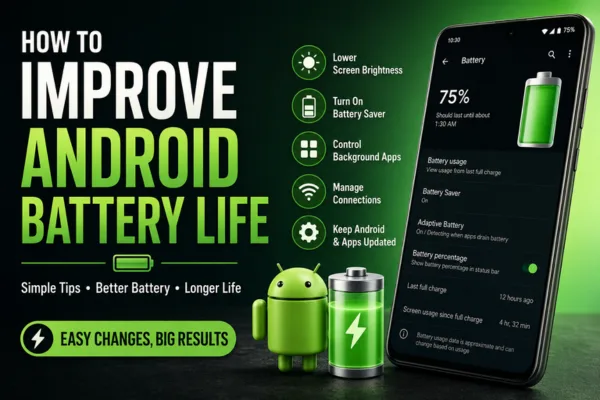
If your phone dies before the day ends, you are not alone. This guide on How to Improve Android Battery Life shows simple, practical changes that can reduce drain without making your phone hard to use.
Why Android battery drains fast
Battery drain usually comes from a few common causes: bright screens, high refresh rates, weak mobile signals, background apps, constant syncing, and location services running too often. Google recommends reducing screen brightness, turning on Adaptive Battery, restricting heavy apps, and using dark theme to help extend battery life .
Some habits also use more power than people expect, such as streaming video, gaming, hotspot use, navigation, and long periods of GPS activity. Android’s own help pages and device tips repeatedly point to display settings, connectivity, and background activity as the biggest battery factors.
1. Lower screen power use
The display is one of the largest battery users on any Android phone. Start by lowering brightness, shortening screen timeout, and enabling auto-brightness so the phone adjusts itself when possible.
You can also switch to dark theme, which can help on many OLED screens, and disable Always-On Display if you do not need it . If your phone supports a high refresh rate, setting it to a lower level can also reduce drain .
- Lower brightness to the lowest comfortable level.
- Set screen timeout to 30 seconds or less.
- Turn on dark mode.
- Disable Always-On Display.
- Reduce refresh rate if your device allows it.
2. Turn on battery saver modes
Battery Saver is one of the easiest ways to stretch remaining charge. Google says Battery Saver and Extreme Battery Saver can reduce background activity, delay some tasks, and limit non-essential features .
Use Battery Saver when you are away from a charger for long periods. If your phone has an advanced power mode, try that only when you need maximum standby time because it may limit app activity and notifications more aggressively.
3. Control background apps
Many battery problems come from apps running behind the scenes. Google recommends restricting apps with high battery use and turning on Adaptive Battery, which helps Android learn which apps you use often and which ones it can slow down in the background.
Check your battery usage screen and look for apps with unusually high drain. Uninstall apps you do not use, and restrict background activity for apps that keep waking the phone for no reason.
What to review first
- Social apps with frequent refresh.
- Shopping and news apps with constant alerts.
- Video and gaming apps that stay active after use.
- Navigation apps that keep location services on.
4. Reduce connectivity drain
Wireless features can drain battery faster than many users realize. Google recommends turning off Bluetooth, Location, and mobile data when you do not need them, and using Wi-Fi instead of mobile data when possible.
Airplane mode can help when you have poor signal or do not need calls and data for a while. Android’s official tips also mention switching off features like always-on voice triggers, limiting background internet access, and reducing 5G use on supported devices when battery life matters most.
5. Update Android and apps
Software updates often include battery fixes and performance improvements. Google recommends keeping Android updated and checking the Play Store for app updates, because buggy apps can drain power in the background.
Restarting the phone can also clear temporary issues that may cause battery drain. This is a simple step, but it often helps after a long uptime or after installing a new app.
Daily habits that help
Small habits can make a bigger difference than one big setting change. If you need better battery life, avoid long gaming sessions, frequent video streaming, hotspot use, and heavy camera use when charging is limited.
A few extra habits can help too:
- Keep the phone out of heat as much as possible.
- Avoid charging it to high heat for long periods.
- Turn off vibration and keyboard sounds if you do not need them.
- Remove unused accounts that sync in the background.
Simple setup routine
- Lower brightness and shorten screen timeout.
- Turn on dark theme.
- Enable Battery Saver.
- Check battery usage and restrict the worst apps.
- Turn off Bluetooth, Location, and mobile data when not needed.
- Update Android and all apps.
- Restart the phone after major changes.
Also Read: Best Phones for BGMI
Common battery myths
Not every “battery tip” is useful. For example, closing every app all the time is not always the best move, because Android is designed to manage memory and background tasks on its own; the better fix is to stop truly battery-hungry apps from misbehaving.
Another myth is that one setting alone will solve everything. In reality, the best answer to How to Improve Android Battery Life is a mix of display control, app management, connectivity cleanup, and regular updates.
Trending FAQs
Why is my Android battery draining so fast?
The most common causes are a bright screen, weak signal, background apps, location services, and heavy use of video or games
Does dark mode really save battery?
Yes, it can help on many Android phones, especially devices with OLED screens, because dark pixels use less power
Should I keep Battery Saver on all day?
You can, but it may limit background activity and make the phone less convenient. Many users turn it on only when battery is low or when they expect a long day away from a charger
Which apps drain battery the most?
Usually social media, video streaming, navigation, gaming, and messaging apps with aggressive background syncing use the most power
Does updating apps help battery life?
Yes. App updates can fix bugs that cause unusual background drain or poor optimization
Final take
The smartest way to How to Improve Android Battery Life is to cut the biggest drains first: screen brightness, background apps, location, and unnecessary wireless features. Combine those changes with Battery Saver, software updates, and better daily habits, and your phone should last longer between charges Google Android battery help.
Try these tips today, then share which one made the biggest difference in your phone’s battery life.