
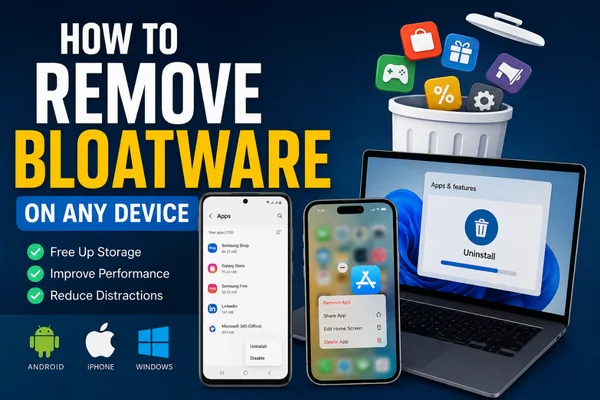
A new phone or computer should feel fast, yet unwanted apps can fill the screen, send alerts, use storage, and run in the background. If you are wondering how to remove bloatware without damaging your device, start by identifying each app, backing up important data, and using built-in operating-system tools. This guide explains practical steps for Android, iPhone, and Windows.
What Is Bloatware?
Knowing how to remove bloatware starts with separating optional software from essential system tools.
Bloatware is software that comes preinstalled or bundled with a device but may not be useful to you. It can include trial programs, shopping apps, duplicate utilities, carrier services, manufacturer tools, games, or promotional apps. Some are removable; others support calls, updates, security, or core functions.
Not every app you do not recognize is bloatware. A phone may depend on a less visible service for Bluetooth, backups, accessibility, notifications, or account syncing. Any guide about how to remove bloatware should begin with this distinction: optional software is not the same as a system tool.
Removing unnecessary apps can free storage, reduce distractions, and limit background activity. Results vary, so one deletion will not transform an older phone into a new one.
Prepare Before You Remove Bloatware
Prepare first to prevent data loss:
Back up photos, documents, contacts, and important files.
Note the app name and purpose before deleting it.
Check whether it stores downloads, notes, messages, or offline content.
Update the operating system and security software.
Remove one app at a time, then restart and test the device.
Avoid third-party “one-click debloat” tools. Some request broad permissions or use commands that are difficult to reverse. Use trusted publishers and official app stores.
How to Remove Bloatware on Any Device
How to Remove Bloatware on Android
Android gives you two main choices: uninstall an app or disable a preinstalled app. Menu names vary by brand.
Uninstall apps you installed
If you want to know how to remove bloatware from an Android phone, begin with apps you installed yourself.
If you downloaded the app yourself, use Google Play Store or Settings:
Open Google Play Store and tap your profile picture.
Select Manage apps & device, then open Manage.
Choose the app you no longer want.
Tap Uninstall and confirm.
Google’s official instructions use this Play Store path for removing installed apps. Paid apps can usually be reinstalled through the same account.
You can also open Settings > Apps > See all apps, select the app, and tap Uninstall. Check its storage and permissions first. Export important data before deleting it.
Disable a preinstalled app
Some system apps cannot be deleted because the phone needs them. On many Android phones, open Settings > Apps, select the app, and tap Disable.
Disabling an app normally stops it from appearing in the app list or running in the usual way. However, the exact option depends on the manufacturer. Google notes that some preinstalled apps cannot be deleted and recommends contacting the device maker for disable instructions.
If Disable is unavailable, turn off notifications, remove the app’s shortcut or widget, revoke unnecessary permissions, and sign out of services you do not use.
Do not disable the phone app, system settings, emergency features, security components, Google Play services, or manufacturer services that control essential hardware. If the phone shows errors after a change, re-enable the last app and restart it.
For more maintenance advice, Android tips and troubleshooting guide.
How to Remove Bloatware on iPhone
Apple uses tighter controls than Android, but you can delete many built-in and third-party apps or hide them in the App Library.
Delete an app completely
The simplest way to remove bloatware on an iPhone is to delete the unwanted app from its shortcut menu.
To remove bloatware or any unwanted app from an iPhone:
Touch and hold the app icon.
Tap Remove App.
Choose Delete App, then tap Delete to confirm.
You can also delete an app from the App Library. Apple distinguishes deletion from Remove from Home Screen, which hides the icon but keeps the app installed.
Before deleting a subscription-based app, check the subscription separately. Apple says deleting an app does not automatically cancel its in-app subscription, so cancel an unwanted plan through your Apple account settings.apple
Hide an app instead
If you may need an app later, choose Remove from Home Screen. It reduces clutter without deleting the app. You can find it again in the App Library or through Search.
Be careful with built-in apps linked to health, safety, communication, or device management. If you are unsure, keep the app and turn off its notifications.
How to Remove Bloatware on Windows
Windows computers often include trial antivirus software, manufacturer utilities, games, cloud offers, and unwanted apps. Do not uninstall a driver or hardware utility until you know what it controls.
Use Settings
To remove bloatware from Windows, start with the system’s normal uninstall options.
On Windows 11 or Windows 10, open Start > Settings > Apps. In Windows 11, choose Installed apps; in Windows 10, open Apps & features. Find the program, select its menu, choose Uninstall, and follow the publisher’s instructions.
Microsoft also supports uninstalling from the Start menu. Open Start > All apps, right-click the program, and select Uninstall. Some traditional desktop programs may require Control Panel > Programs > Programs and Features instead.
Review startup apps
An installed program may cause fewer problems if it does not launch at startup. Open Settings > Apps > Startup and turn off access for apps you recognize and do not need immediately.
Keep security and hardware tools enabled unless you know their role. After uninstalling a trial security product, make sure Windows Security or another trusted protection tool is active.
When Uninstall Is Blocked
A missing Uninstall button does not mean an app is dangerous. It may be a system component, managed app, restriction, or program currently in use.
Try these safe steps:
Restart the device and try again.
Check whether you are using an administrator account.
Review work, school, family, or device-management restrictions.
Search the device maker’s support page for the exact app name.
Disable notifications and permissions if deletion is not supported.
Use an official recovery or reset process only after backing up your data.
Avoid editing the Windows Registry or deleting Android packages because an online list labels them unnecessary. Device models, software versions, and regional features differ. A command that works on one model can break another.
Mistakes to Avoid
Do not remove an app by name alone. Check its developer, permissions, storage use, and role before deciding how to remove bloatware.
Do not delete apps that control calls, updates, encryption, accessibility, or emergency functions.
Do not install unknown APK files or “cleaner” programs for a simple uninstall.
Do not assume an app is harmless because it came preinstalled.
Do not confuse hiding an icon with deleting the app.
Do not forget to cancel subscriptions after removing an app.
Do not remove several system components at once.
After each change, test calls, Wi-Fi, Bluetooth, camera access, notifications, payments, and backups.